
A page-by-page guide to the student profile: the header (year, type, status, tier, dates, customer value), the Quick links menu, and what each page shows and lets you do, from Personal information to Courses.

The student profile is one page per student with a Quick links menu on the left and a header that stays at the top whatever page is open. Open it from the Students page by clicking the student's name, or from any class list, lesson or invoice. This article walks through the header and every page in the menu.
The header
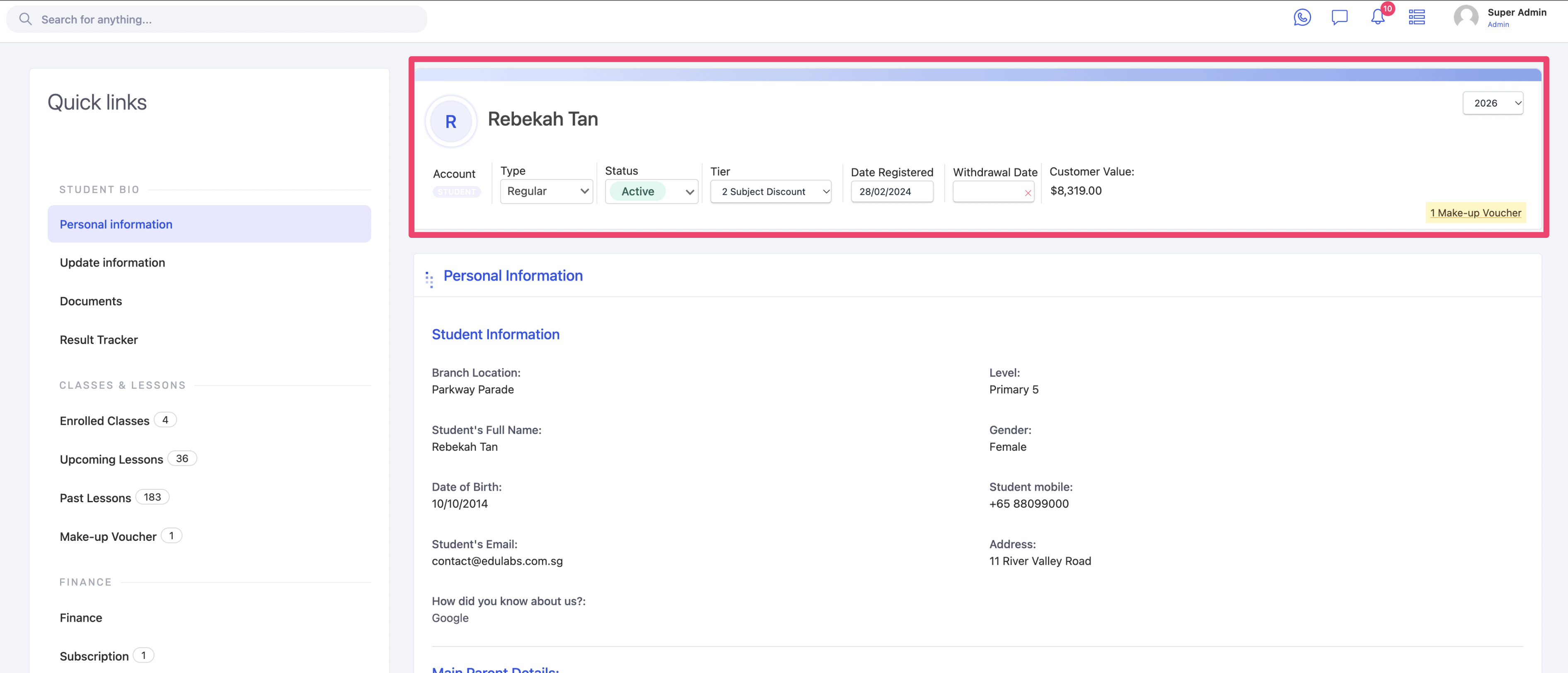
Item | What it shows or does |
|---|---|
Year selector | Top right. The profile shows classes, lessons, finance and attendance for the selected year. Switch it to see last year or next year. |
Account | STUDENT. Fixed. |
Type | Regular, Trial, Holiday, Pending or Non-convert. Change it here to convert a trial or holiday student (Regular) or to park a trial that did not join (Non-convert). |
Status | Active, Inactive or Graduate. Inactive is set automatically when the student leaves every class; set Graduate at year end for graduating levels (P6, S4 etc.). |
Tier | The discount tier applied to every queued invoice, for example 2 Subject Discount or 3 Subject Discount. Blank means none. |
Date Registered | The day the student was created. Editable. |
Withdrawal Date | Filled by a withdrawal request, or by hand. A date here with no end date on the class does not stop lessons; see Processing a student withdrawal request. |
Customer Value | Total paid by this student across all years. |
Make-up Voucher | The yellow pill is the number of vouchers available to book. It links to the Make-up Voucher page. |
Student bio
Personal information
A read-only summary. An Enroll Year selector at the top shows the level the student had in each year, because promotion changes the level per year.
Student Information: branch, level, full name, gender, date of birth, student mobile, email, address, and the "How did you know about us?" source.
Main Parent Details: relationship, name, mobile, email. The mobile is the parent portal username.
Secondary Parent Details: the same fields for a second contact. Optional.
Siblings: every other student linked to the same parent, with status and level. Siblings share one parent record and one portal login.
Delete, at the bottom: removes the student. Use it only for a record created by mistake; a leaver is made Inactive, not deleted.
Update information
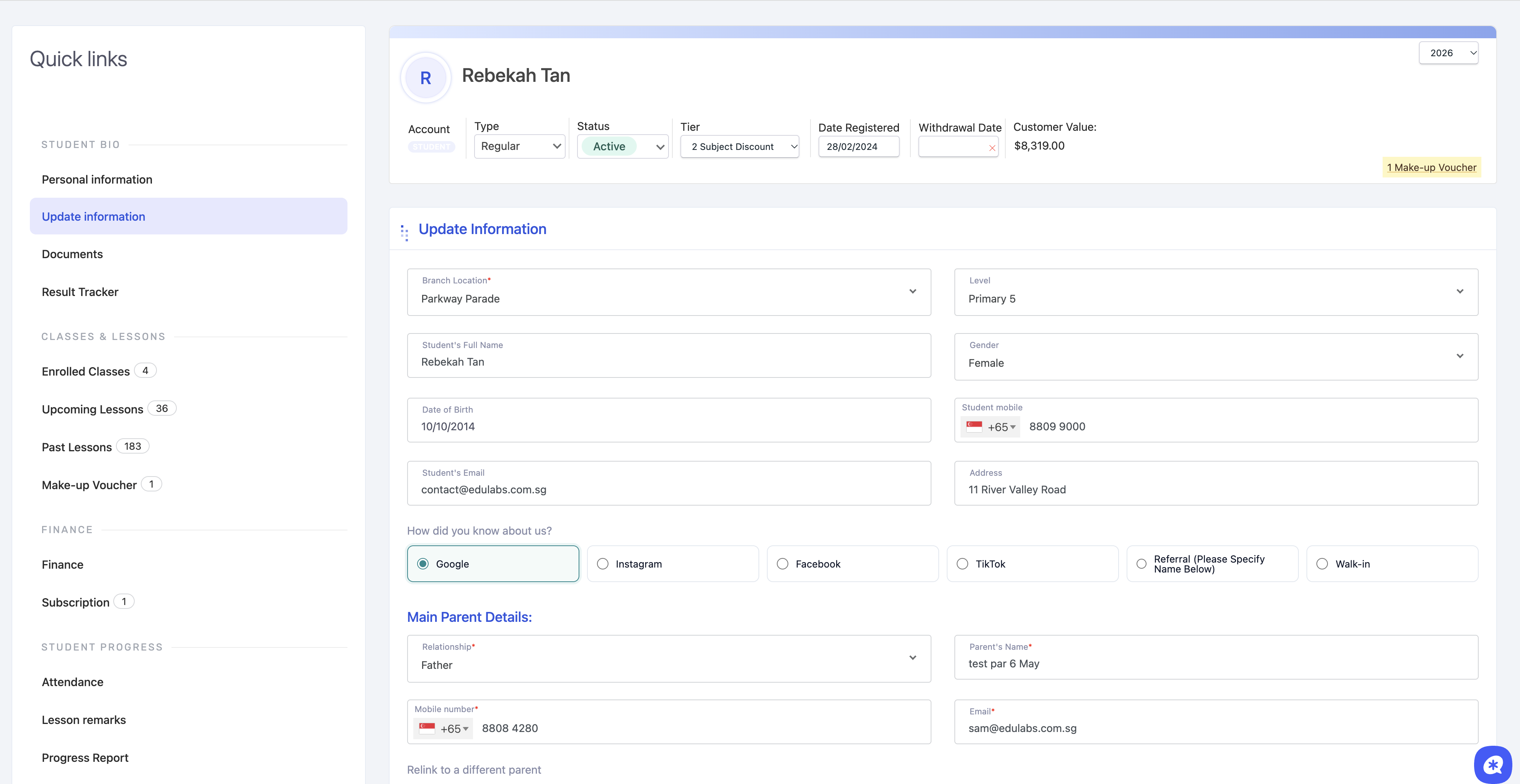
The same fields as an editable form. Fields marked * are required.
Edit the student fields
Branch Location, Level, full name, gender, date of birth, mobile with country code, email, address, and the source (Google, Instagram, Facebook, TikTok, Referral, Walk-in). Extra fields set up on the Student tab of System Settings appear here too.
Edit the main parent
Relationship (Father, Mother, Guardian, Student, Grandmother, NIL), name, mobile with country code, email. Editing here changes the parent record, so every sibling sees the change.
Relink to a different parent
Use Parent 1 under "Relink to a different parent" to attach the student to another existing parent record. Use this when a student was created under a duplicate parent. The dropdown searches by name and mobile.
Secondary parent
Optional second contact with the same fields.
Update
Click Update. Changes show on the profile and in the parent portal at once.
Documents

Signed forms kept on the record: the Regular Registration Form the parent signed, and any later form. Click a document to open the PDF. Nothing is uploaded here by hand; documents arrive from the forms.
Result Tracker
Test and exam scores entered per class and term. The scores feed the progress report and the Academic results report.
Screenshot to capture: the Result Tracker page
Classes and lessons
Enrolled Classes
Tabs Active, Inactive and Past, an Enroll Year selector and an Add Class button. The table lists each enrolment with class, level, subject, start date, end date, year and billing plan, plus the row actions.
Column | Meaning |
|---|---|
Class, Level, Subject | The class the student is in and what it teaches. |
Start date | The first lesson the student attends. The first invoice is pro-rated from it. |
End date | Blank while the student is enrolled. A date here removes the student from lessons after it and cuts the invoice queue. |
Year | The class year. A student promoted to next year has rows under both years. |
Billing plan | The plan on the enrolment row, for example Monthly or Holiday Workshop. It decides how the class is invoiced. |
Action | Edit the row (dates, fees, plan, attendance type), Change class, set an end date, or remove the row. |
Screenshot to capture: Enrolled Classes with one row and its actions
Upcoming Lessons

Every future lesson the student is in, newest first, with the count in the heading. Tabs All, Make-up, Removed and Cancelled, and a class filter. Each card shows the date, class, day, time and teacher, and two buttons:
CHANGE: move the student to another lesson of the same subject and level. A make-up voucher is issued for the missed lesson and consumed by the new one.
REMOVE: take the student out of that lesson. A voucher is issued; the student appears under Not coming on the teacher's sheet.
Both are lesson changes. The parent can do the same from the portal inside the booking rules. See Change of lesson for a student.
Past Lessons

Every lesson that has happened, with the count. Tabs All, Present, Absent, Make-up, Removed and Cancelled; an Attendance filter; a class filter. Each card shows the date, class, day, time and teacher, with a tag for Present, Absent or Make-up once the lesson is marked. A lesson with a recording shows View Recording, which opens the video.
Suggested Makeup Lessons
Lessons the student could take to use an open voucher: same subject and level, inside the booking window, with a seat. Book from here instead of searching the Lessons page.
Screenshot to capture: the Suggested Makeup Lessons page
Make-up Voucher

Add Voucher: issue a voucher by hand, for a subject, with an expiry. Use it after a booking was made without one.
Add Allowance: give extra make-up changes beyond the per-term limit.
Tabs Available, Used, Expired and Make-up allowance.
Vouchers available: the count, then one line per subject with the next expiry date.
Timeline: every change to the balance, newest first, with the lesson, the date and who did it: added manually, lesson cancelled (voucher added), lesson booked (voucher used), expired, and vouchers given for a billable excluded day.
The balance in brackets on each line is the running total. A negative balance or a "No voucher" tag means a booking was made with nothing to consume. See Fix: "No voucher" or a negative make-up voucher balance and Manage makeup vouchers on student profile.
Finance
Finance

A year selector, four tiles and five tables. The tiles are Pending Amount, Overdue Amount, Paid Amount and Deposit for the year.
Table | Columns | Notes |
|---|---|---|
Invoices | Inv no., total, amount due, term, date, status | Status is Paid, Pending, Overdue or Void (Merged). A merged invoice voids the originals and keeps their numbers. Click an invoice number to open it. |
Receipts | Receipt no., amount, payment mode, term, date, status | One row per payment. The receipt number follows the invoice number. |
Deposits | Deposit no., subject, invoice no., amount, amount left, date, status | Open deposits and what is left on each. |
Credit Notes | CN no., credit amount, credit available, added from, date, status | Added from is Manual, a class change, an overpayment or a deposit. Closed means fully applied or refunded. |
Refunds | RN no., invoice no., amount, refund type, CN no., processed date, status | Not Processed until the transfer is made and the note is marked processed. |
Student bio
Personal information
A read-only summary. An Enroll Year selector at the top shows the level the student had in each year, because promotion changes the level per year.
Student Information: branch, level, full name, gender, date of birth, student mobile, email, address, and the "How did you know about us?" source.
Main Parent Details: relationship, name, mobile, email. The mobile is the parent portal username.
Secondary Parent Details: the same fields for a second contact. Optional.
Siblings: every other student linked to the same parent, with status and level. Siblings share one parent record and one portal login.
Delete, at the bottom: removes the student. Use it only for a record created by mistake; a leaver is made Inactive, not deleted.
Update information

The same fields as an editable form. Fields marked * are required.
Edit the student fields
Branch Location, Level, full name, gender, date of birth, mobile with country code, email, address, and the source (Google, Instagram, Facebook, TikTok, Referral, Walk-in). Extra fields set up on the Student tab of System Settings appear here too.
Edit the main parent
Relationship (Father, Mother, Guardian, Student, Grandmother, NIL), name, mobile with country code, email. Editing here changes the parent record, so every sibling sees the change.
Relink to a different parent
Use Parent 1 under "Relink to a different parent" to attach the student to another existing parent record. Use this when a student was created under a duplicate parent. The dropdown searches by name and mobile.
Secondary parent
Optional second contact with the same fields.
Update
Click Update. Changes show on the profile and in the parent portal at once.
Changing the main parent's mobile changes the portal username. Tell the parent, or they cannot log in.
Documents
Signed forms kept on the record: the Regular Registration Form the parent signed, and any later form. Click a document to open the PDF. Nothing is uploaded here by hand; documents arrive from the forms.
Result Tracker
Test and exam scores entered per class and term. The scores feed the progress report and the Academic results report.
Screenshot to capture: the Result Tracker page
Classes and lessons
Enrolled Classes
Tabs Active, Inactive and Past, an Enroll Year selector and an Add Class button. The table lists each enrolment with class, level, subject, start date, end date, year and billing plan, plus the row actions.
Column | Meaning |
|---|---|
Class, Level, Subject | The class the student is in and what it teaches. |
Start date | The first lesson the student attends. The first invoice is pro-rated from it. |
End date | Blank while the student is enrolled. A date here removes the student from lessons after it and cuts the invoice queue. |
Year | The class year. A student promoted to next year has rows under both years. |
Billing plan | The plan on the enrolment row, for example Monthly or Holiday Workshop. It decides how the class is invoiced. |
Action | Edit the row (dates, fees, plan, attendance type), Change class, set an end date, or remove the row. |
Screenshot to capture: Enrolled Classes with one row and its actions
Add Class here is the Students-page popup: it does not save the class page. See Add student to a class and generate 1st invoice, Add end date for a student in a class and Change of class for a student.
Upcoming Lessons
Every future lesson the student is in, newest first, with the count in the heading. Tabs All, Make-up, Removed and Cancelled, and a class filter. Each card shows the date, class, day, time and teacher, and two buttons:
CHANGE: move the student to another lesson of the same subject and level. A make-up voucher is issued for the missed lesson and consumed by the new one.
REMOVE: take the student out of that lesson. A voucher is issued; the student appears under Not coming on the teacher's sheet.
Both are lesson changes. The parent can do the same from the portal inside the booking rules. See Change of lesson for a student.
Past Lessons
Every lesson that has happened, with the count. Tabs All, Present, Absent, Make-up, Removed and Cancelled; an Attendance filter; a class filter. Each card shows the date, class, day, time and teacher, with a tag for Present, Absent or Make-up once the lesson is marked. A lesson with a recording shows View Recording, which opens the video.
Suggested Makeup Lessons
Lessons the student could take to use an open voucher: same subject and level, inside the booking window, with a seat. Book from here instead of searching the Lessons page.
Screenshot to capture: the Suggested Makeup Lessons page
Make-up Voucher
Add Voucher: issue a voucher by hand, for a subject, with an expiry. Use it after a booking was made without one.
Add Allowance: give extra make-up changes beyond the per-term limit.
Tabs Available, Used, Expired and Make-up allowance.
Vouchers available: the count, then one line per subject with the next expiry date.
Timeline: every change to the balance, newest first, with the lesson, the date and who did it: added manually, lesson cancelled (voucher added), lesson booked (voucher used), expired, and vouchers given for a billable excluded day.
The balance in brackets on each line is the running total. A negative balance or a "No voucher" tag means a booking was made with nothing to consume. See Fix: "No voucher" or a negative make-up voucher balance and Manage makeup vouchers on student profile.
Finance
Finance
A year selector, four tiles and five tables. The tiles are Pending Amount, Overdue Amount, Paid Amount and Deposit for the year.
Table | Columns | Notes |
|---|---|---|
Invoices | Inv no., total, amount due, term, date, status | Status is Paid, Pending, Overdue or Void (Merged). A merged invoice voids the originals and keeps their numbers. Click an invoice number to open it. |
Receipts | Receipt no., amount, payment mode, term, date, status | One row per payment. The receipt number follows the invoice number. |
Deposits | Deposit no., subject, invoice no., amount, amount left, date, status | Open deposits and what is left on each. |
Credit Notes | CN no., credit amount, credit available, added from, date, status | Added from is Manual, a class change, an overpayment or a deposit. Closed means fully applied or refunded. |
Refunds | RN no., invoice no., amount, refund type, CN no., processed date, status | Not Processed until the transfer is made and the note is marked processed. |
Subscription

Tabs Active and Past, an Enroll Year selector, and one row per subscription: the periods it covers (the months, or the terms), the year, and View Subscription, which opens the queue of invoices with Generate now, Undo, Re-Generate and Delete. A student with no row here will not be invoiced. See Regenerate student subscription and Fix: No invoice was generated when a student was added to a class.
Student progress
Attendance

Tabs Regular Attendance and Makeup Attendance. Pick the year, one or more classes and a term (a month, or Term 1 to 4), then click Generate. The summary lists each lesson in the range with its mark and the totals, the same figures the Class attendance report shows for the whole class.
Lesson remarks
The remarks teachers typed on the attendance sheet, one per lesson, with the class and date. Remarks may also have gone to the parent as attendance notes.
Screenshot to capture: the Lesson remarks page
Progress Report
The term reports for this student: status (Draft, Ready, Generated, Sent), the PDF, and send. See Using the Student Progress Report.
Screenshot to capture: the Progress Report page on a profile
Class Activity
Photos and notes teachers posted on lessons the student attended. Parents see the same under Recent materials in the portal.
Screenshot to capture: the Class Activity page
Incidents
A log of incidents recorded against the student, with date, description and who recorded it. Internal; not shown to parents.
Screenshot to capture: the Incidents page
Notes
Free-text notes for staff, with the author and date. The count in the menu shows how many there are. Use it for anything the next admin should know before calling the parent.
Communication
Sent Messages: every WhatsApp and email sent to this student's parent, with the template and delivery status. The per-student view of Sent messages.
Announcements: the portal announcements this student's family can see.
WhatsApp: the conversation with the parent on the centre number, if WhatsApp SME is on. Reply from here or from the Inbox.
Screenshot to capture: the Sent Messages page on a profile
Miscellaneous and LMS
Activity Log: every change made to the record, with who and when: enrolments, type and status changes, invoices, payments, lesson changes. The first place to look when something on the profile is not as expected.
Student Pause: put the student on a break between two dates. Lessons and queued invoices in the range are skipped; the student stays Regular and Active. See Pause, inactive and removal.
Withdrawal: start or view the withdrawal request for this student. See Processing a student withdrawal request.
Courses: the e-learning courses assigned to the student, with progress. Part of the E-learning add-on.
Screenshot to capture: the Activity Log page
Where things are
I want to | Page |
|---|---|
Change the level, mobile or parent | Update information |
Convert a trial to regular | Header › Type, then Enrolled Classes › Add Class; or send the prefilled form |
Put the student in a class | Enrolled Classes › Add Class |
End a class, change a class | Enrolled Classes › row action |
Move or skip one lesson | Upcoming Lessons › Change or Remove |
See why a voucher balance is wrong | Make-up Voucher › Timeline |
See what is owed | Finance › tiles and Invoices |
See why no invoice came | Subscription › View Subscription |
Check attendance for a term | Attendance › Generate |
Find who changed something | Activity Log |
Rules to know
The year selector in the header changes every page. Check it first.
Type and Status save at once. Add class is a separate step.
Parent details are shared with siblings. Relink, do not retype, when a parent is duplicated.
Delete is for mistakes. Leavers become Inactive.
.