
What a make-up voucher is, how to add or remove one by hand, and the setting that decides whether absence issues a voucher.

How a voucher is created
Automatically when a student is removed from a lesson (a lesson change). The voucher carries the subject and the missed date.
Manually from the student profile. Select the subject; select the missed lesson if one exists. For lessons before your go-live date there is no lesson to link, so leave it blank.
By setting, when a student is marked absent, if your centre issues vouchers on absence rather than on removal.
Matching
A voucher can be used on a lesson whose subject and level match the voucher. That is why a voucher created without a subject shows "No voucher" when you try to use it, and why consult or extra classes should have their own subject if they are not valid make-ups.
Expiry
Vouchers expire 30, 60 or 90 days after the missed lesson, as set for the centre. Expiry is mandatory; an expired voucher is kept for the record but cannot be booked. Balances carry across years and never reset on their own.
Balance
The profile shows the count of active vouchers. A negative balance means a student was added to a make-up lesson without a voucher to consume; the profile flags it under Needs attention. Add the missing voucher and the balance corrects.
What consumes a voucher
Booking the student into a make-up lesson, by an admin or by the parent through the portal. The lesson is tagged Make-up on the attendance sheet, the voucher becomes Booked, then Used when the lesson passes. Cancelling the booking returns the voucher to Active; if it doesn't (rare), add it back by hand.
Adding or removing a make-up voucher manually
Most vouchers are created by a lesson change. Add one by hand when the removal wasn't recorded, the lesson predates go-live, or you are granting goodwill. Remove one that was issued by mistake.
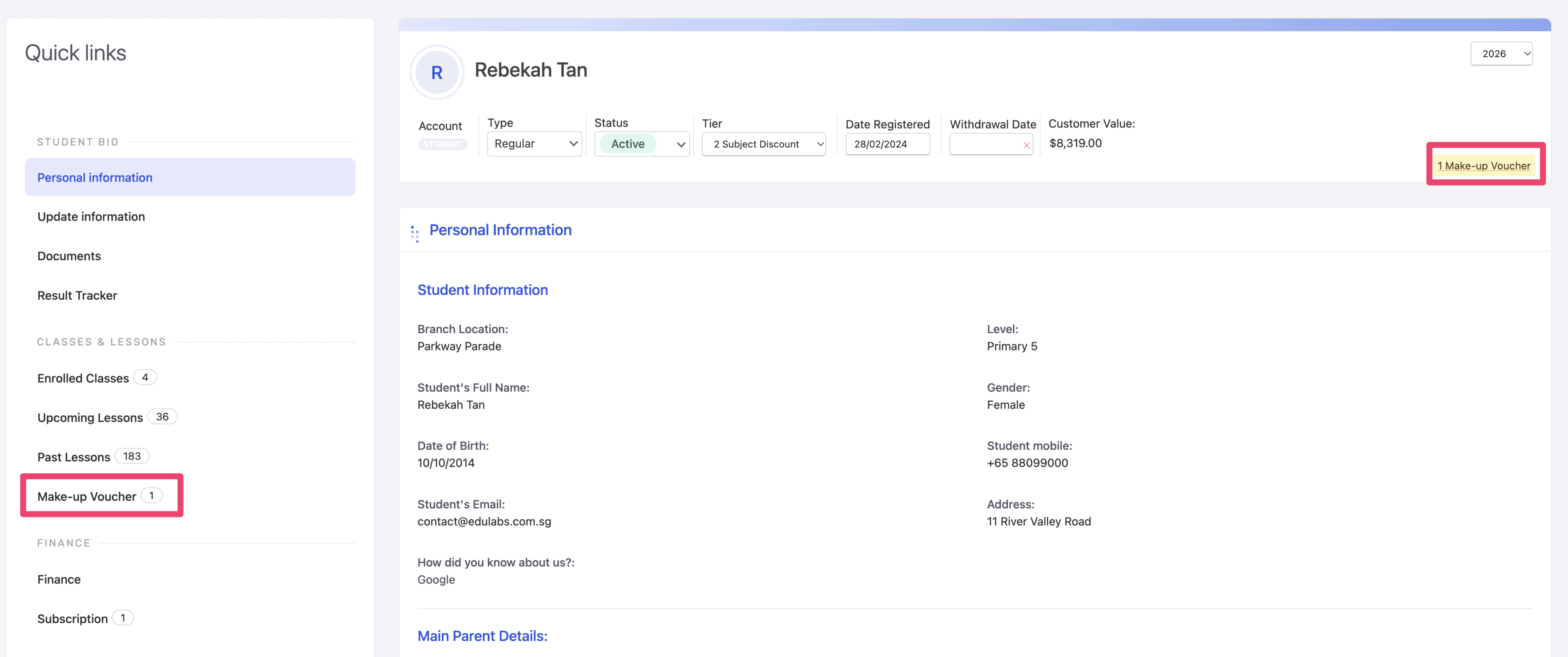
Go to the student profile and click on Makeup vouchers
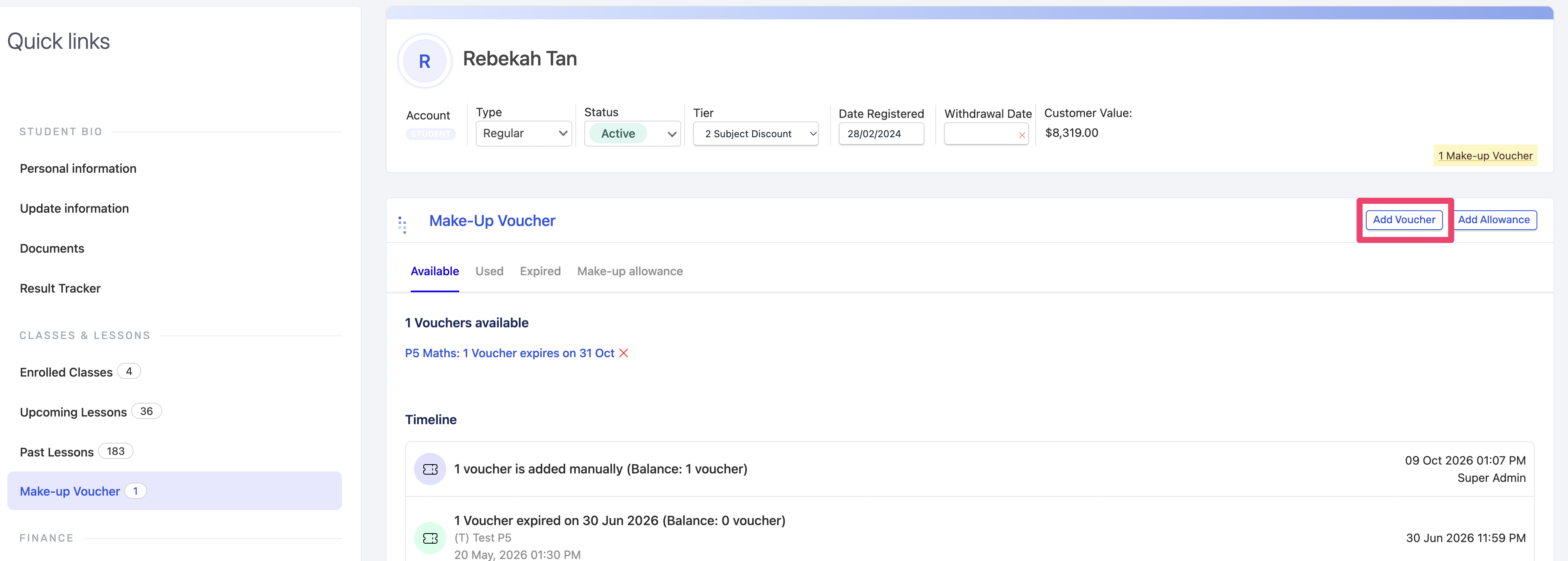
Click on "Add voucher"
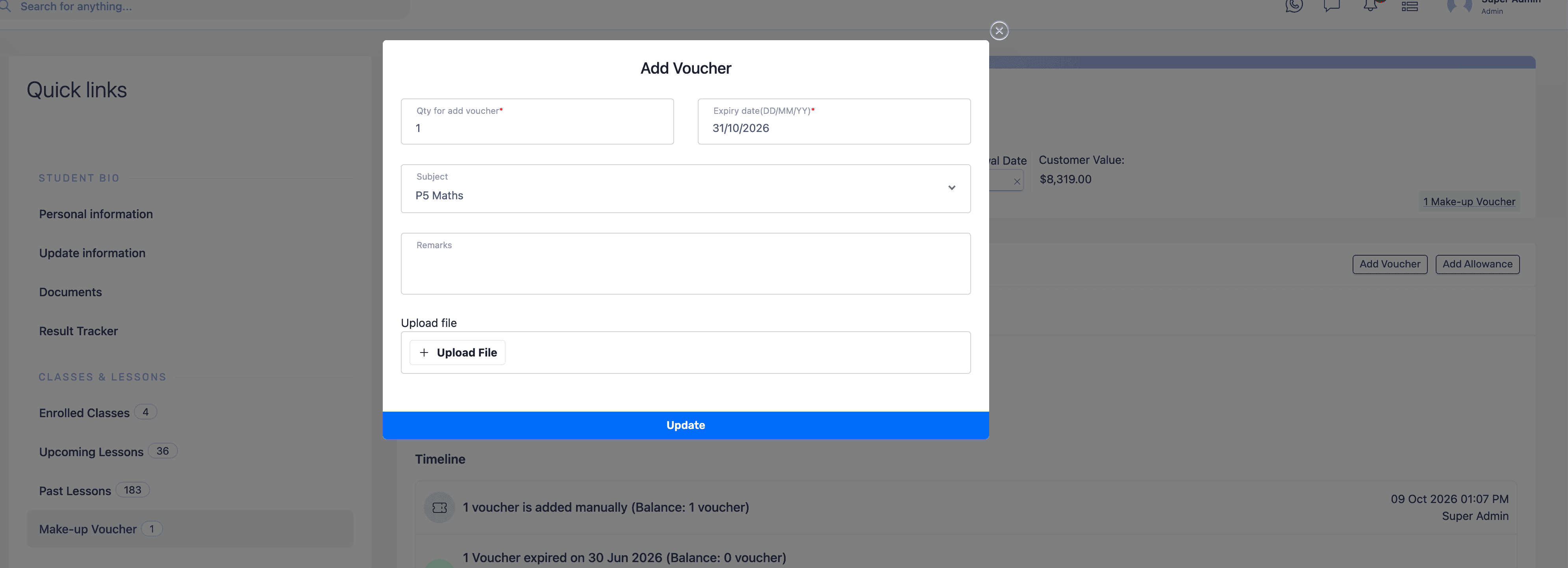
Select the subject and the missed lesson - It must match the subject of the class the make-up lesson will be in, or the voucher won't match. If the lesson exists, choose it so the report links missed and make-up dates.
Set expiry date and save - The voucher will auto expire on the set expiry date
Removing
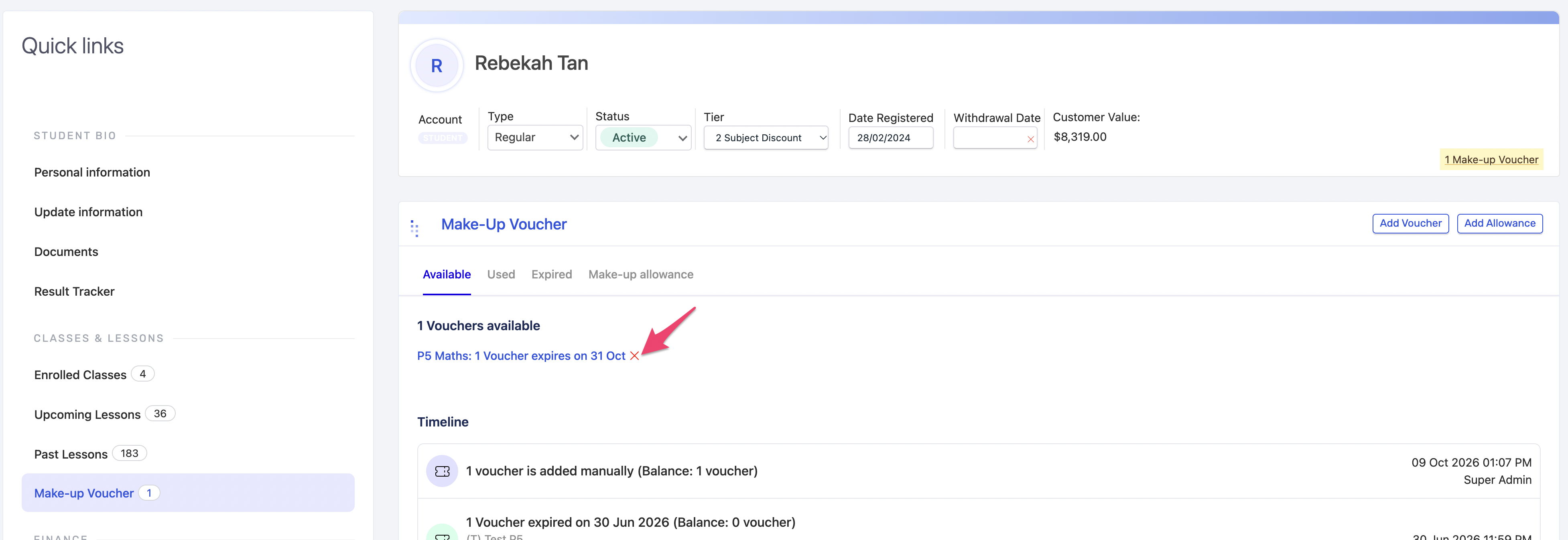
Click the red X on an Active voucher. A Booked voucher must be released first by removing the student from the make-up lesson. Deleting a voucher does not remove the student from any lesson.
Setting: Issue a voucher on absence or only on removal
One switch decides whether marking a student absent creates a make-up voucher. Off by default: only a lesson change (removal) does.

The two modes
Mode | Voucher created when | Suits |
|---|---|---|
Rescheduling only | Student is removed from a lesson before it happens | Centres that require notice for a make-up |
Rescheduling & absent | Removal, or marked Absent on the sheet | Centres that offer a make-up for any miss |
Changing it
Settings › Make-up voucher setting › choose › Save. Applies to attendance marked from now on. Existing absences don't get vouchers retroactively; add them manually if needed.
Related settings
Voucher expiry (30/60/90 days), changes per subject per term, booking window and cut-off live on the same page or under Portal settings.
Rules to know
Subject is mandatory when adding makeup voucher.
Expiry counts from the missed lesson, not from when the voucher was created.
A make-up lesson without a voucher is still a make-up on the sheet, but the balance goes negative.
Delete only Active vouchers.