
On the Lessons page, locate the lesson you want to edit and click on Edit
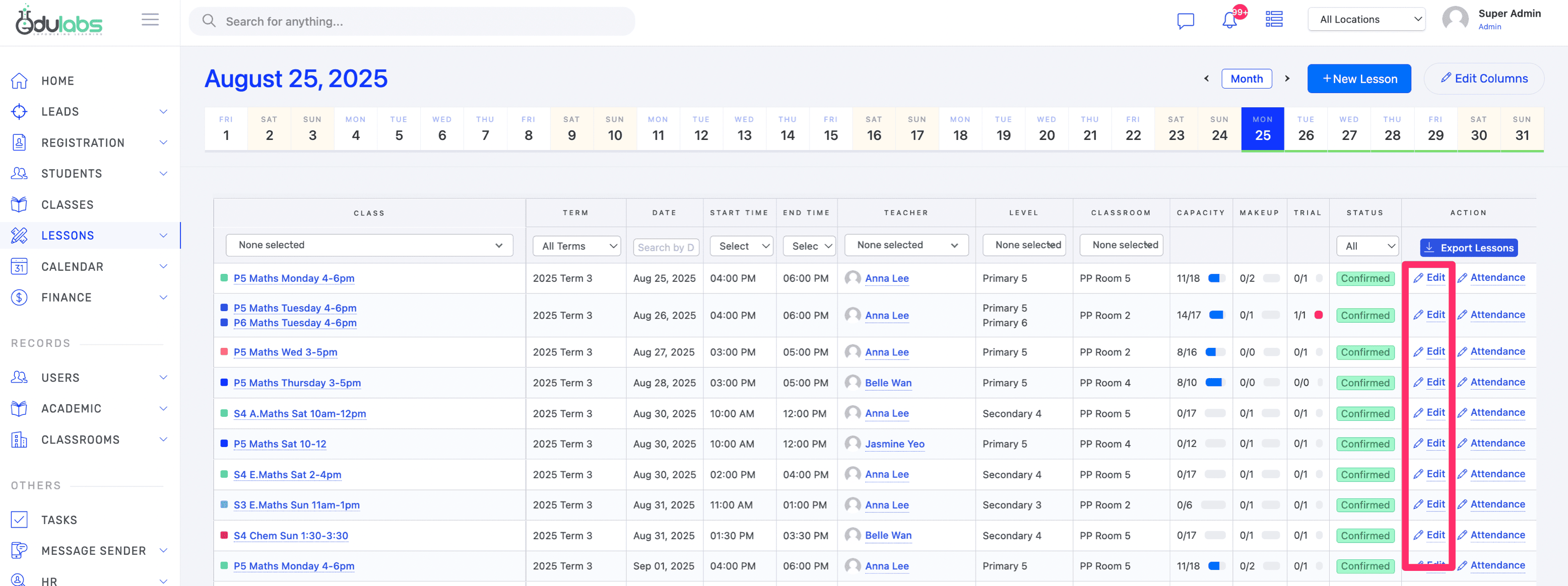
Changes that can be done on a lesson
Date
Time
Classroom
Teacher - Teacher is changed for this 1 lesson only, the original teacher in the class page remains unchanged
Lesson status (Confirmed / Postponed / Cancelled) - Postponed and cancelled just means that the lesson is no longer running and the system will automatically add a Make-up Voucher for the affected students in the lesson. The make-up voucher can be seen on the student profile.
Additionally, these extra fields can also be edited if it is enabled.
Remarks - these are remarks for the lesson
Topic - this is the topic taught for the lesson, it will also show on the Lessons page in the Student/Parent portal
Video link - this is the lesson video recording such as a Youtube link
Upload file - lesson materials such as PDF can be uploaded
Once done with the changes, click on Update button
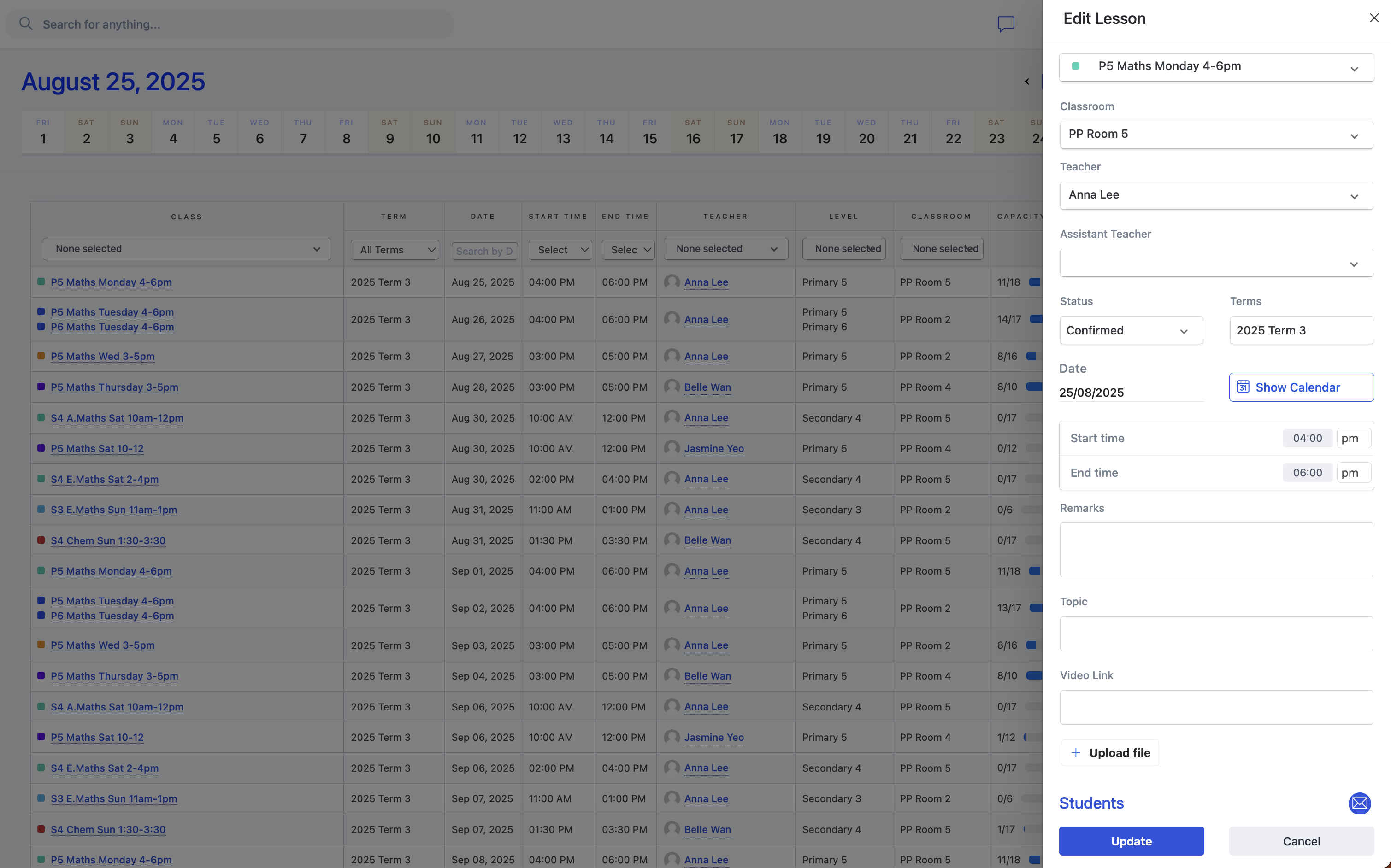
Changes to a teacher in a lesson
Changing the teacher in a lesson will re-assign the lesson to the replacement teacher and the lesson will be removed from the original teacher's schedule and show up on the replacement teacher's schedule.
Chnages to student list in a lesson